Help
How to use VegLog
VegLog plans your beds, gives you sowing dates for where you live and keeps a record of everything you grow. Here's how each part of the app works, a few steps at a time. Words in bold are the tabs and buttons you'll see on screen.
Getting around
Five tabs, and Settings from Today.
- Today has this week's sowings and jobs, what's ready to pick, and advice from the forecast.
- Garden has your beds and growing spaces, what's in each one, and the Garden Map.
- Plan has your crop plans, Plants & Seeds, your Seed Box and the crop library.
- Journal keeps every planting, harvest and note, with your harvest totals.
- Search finds crops, plantings, beds and notes.
- The + button at the top of Today adds a harvest, a planting, a to-do or a bed.
- Settings, at the top of Today, has your town and frost dates, the crops you grow, reminders and units.
Beds and spaces
A raised bed, an allotment, a greenhouse or a few pots: each is a space you can plan.
- In Garden, tap Add a Bed. Give it a name and choose what kind of space it is.
- Set its shape and size: a rectangle or a round bed, measured to the centimetre. For any other shape, use Bed Shape in the planner.
- Choose how to plan it: in squares (square-foot style), in blocks of any size, or in rows.
- To change any of this later, open the bed and choose Edit Bed from its menu.
- Metric or imperial? Choose in Settings, under Bed measurements.
- The free version plans one space. VegLog Pro plans as many as you like.
Plan a bed
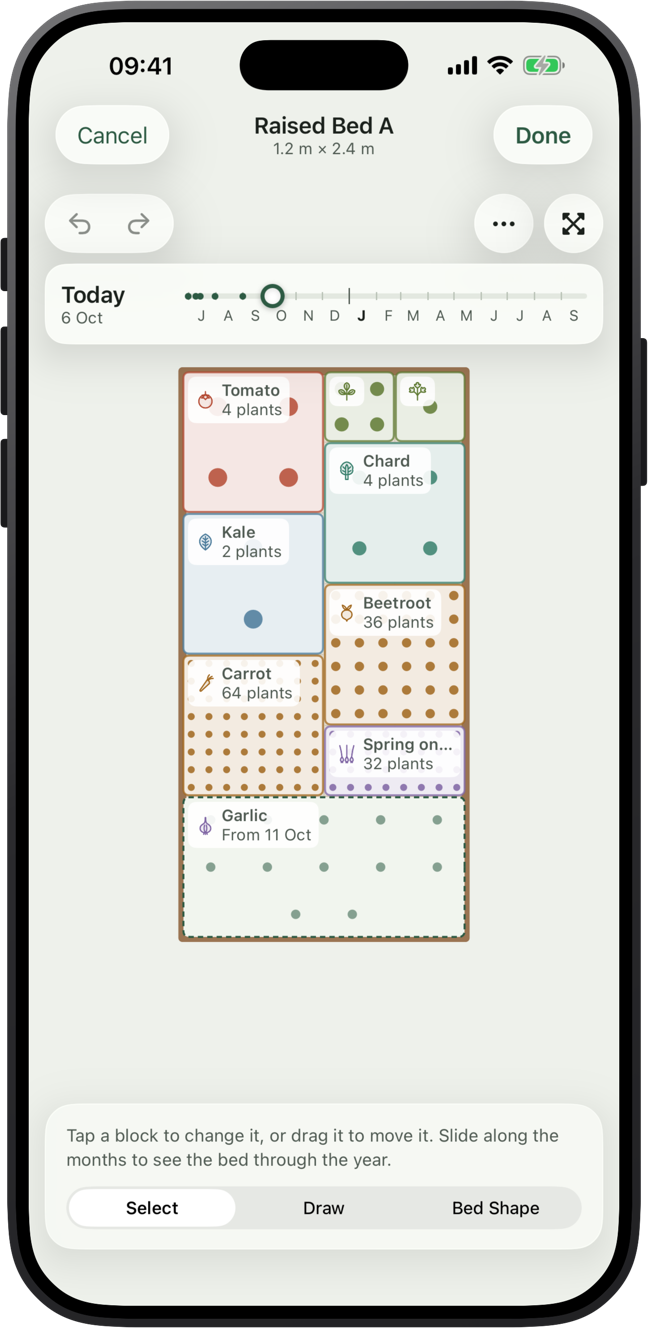
Draw where each crop grows, to scale, and see the bed on any day of the year.
- Open a bed from Garden and tap Plan Bed.
- Tap Draw, then Plan a Crop to choose what to grow. Drag across the bed where it'll grow, or tap to add a square. Blocks line up with the bed's grid.
- Tap a block to change it. On Layout, choose Grid, Rows Across or Rows Down: VegLog fills the block from the crop's spacing, and you can change the spacing or the number of plants. On Season, choose when it goes in and comes out.
- Drag a block to move it, and drag its corners to change its size. Pinch to zoom, and the button at the top right shows the whole bed again.
- Slide along the months at the top to see the bed on any day. When a crop comes out, plan the next one in its space.
- Not sure where to start? Suggest a Plan lays out the crops you choose, or start from one of the Templates. Both are in the ⋯ menu.
- Select Several, in the same menu, moves, duplicates or clears lots of blocks at once. Bed Shape changes the bed's outline, for beds that aren't rectangles.
- When you've sown a crop, tap its block and tap Sown. VegLog logs the planting, and takes the seed from your Seed Box.
- Tap Done to save, or Cancel to leave the bed as it was. Undo is at the top left.
Sowing dates
Every date comes from when frosts usually end and begin where you live.
- Set your town in Settings. VegLog works out your frost dates from its weather, or you can enter your own.
- Choose the crops you grow, in Settings or the crop library on Plan. Today then shows each one when it's time to sow it.
- Every crop in the library has its sowing times, spacing and days to harvest. Change any of them to suit your garden.
- With VegLog Pro, Plan shows your sowing year, and crop plans remind you to sow each batch.
Today
What to do in the garden this week.
- This week lists what to sow and plant, and your to-dos. Tick one off when it's done, or swipe it.
- Ticking off a sowing logs the planting. If you planned that crop in a bed, it fills its space there.
- Ready to pick shows what should be ready. Tap the basket to log a harvest.
- The card at the top gives advice from your forecast: when to skip watering, or cover crops before a frost.
- Choose your reminders in Settings: a weekly summary and, with VegLog Pro, frost and heat alerts.
Plantings, harvests and notes
Your garden's record, season after season.
- Use + on Today or Journal to log a harvest, add a planting or write a note.
- Log each pick by weight or by count, with a photo if you like. Journal adds up your year by month and, with VegLog Pro, by crop.
- Notes stay with a bed or a planting, so next year you know what worked.
- Ask Siri to “Log a harvest in VegLog”, or add the VegLog widget to your Home Screen to see your week at a glance.
Seed Box
The seed packets you have, how old they are, and which to use first.
- Open Seed Box from Plan, and tap + to add a packet: the crop, variety, supplier, year and how much is left.
- Use first shows packets getting old, from each crop's usual seed life or the sow-by date.
- Unsure about old seed? Sow ten on damp kitchen paper and record how many come up, on the packet.
- With VegLog Pro, Scan a Packet reads it with the camera, and Plants & Seeds checks your plan against the box: what you have, what to buy and how many to sow.
Garden Map
All your beds on one map, through the year.
- Open Garden Map from the top of Garden.
- Tap Arrange, then drag each bed into place and turn it the way it lies.
- Add paths, lawns, sheds, ponds, compost and more, then tap Done.
- Slide along the months to see what's growing where. Tap a bed to open it or plan it.
iCloud and your data
No account to make: your garden is yours.
- Your garden is kept on your device and in your own iCloud, so it's the same on your iPhone and iPad.
- Everything works offline. Changes sync when you're back online.
- On a new device, sign in to the same Apple Account and your garden comes back.
- We can't see your garden. Anonymous usage counts help improve the app, and never include what you type. The privacy policy has the details.
VegLog Pro
What Pro adds to the free app.
- Plan as many beds, greenhouses and pots as you like.
- Your sowing year, and crop plans that remind you to sow each batch.
- Your Seed Box checked against your plan, with packets read by the camera.
- Frost and heat alerts, and harvest stats for your year.
- Already bought Pro? Restore Purchases is in Settings.
Still stuck?
Email hello@veglog.app and say what you were trying to do. It helps to mention your iPhone or iPad model and the version of VegLog (it's at the bottom of Settings in the app). The support page answers common questions too.